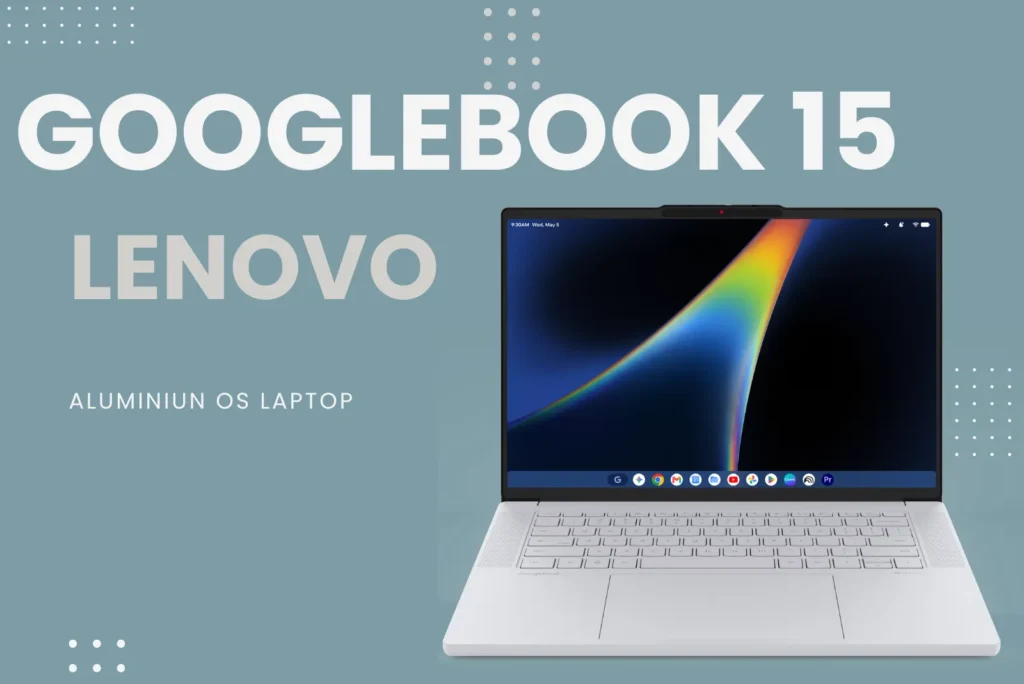
If you’ve gone looking for a GooglebookOS ISO, you’ve probably noticed something odd: there isn’t one. Google doesn’t publish an installable Googlebook OS image for PCs. The only official downloads are device-specific recovery images, one for each of the five launch Googlebooks, and each is built to restore that exact laptop, not to install on whatever machine you have lying around.
That hasn’t stopped the community. Within days of the recovery images going live, developers had Googlebook OS booting in a GPU-accelerated virtual machine on Apple Silicon Macs and on a regular Intel laptop. Neither is polished, and neither replaces a real Googlebook, but together they are the closest thing to a “GooglebookOS ISO” that exists today. Here’s what’s real, what works, and what to avoid.
Table of Contents
Why Google doesn’t offer a GooglebookOS ISO
The short answer is that Googlebook OS is Android underneath. Google describes it as ChromeOS rebuilt on the Android tech stack, and the recovery builds carry Android 17 version numbers and an Android 17 kernel. That matters because Android has never worked like Windows or Linux.
A Windows or Ubuntu ISO is a universal installer packed with drivers for thousands of devices. An Android build is the opposite: it ships a vendor partition, the layer that holds hardware-specific drivers and services, tuned for one board. When developer Skylar Taylor tried to boot the Dell image in a VM, the system expected a TPM, Trusty, a Qualcomm DSP and a specific GPU, none of which a virtual machine has.
The boot process is Android’s, too. Magisk creator John Wu, who has been poking at a Googlebook, found that it uses standard Android fastboot, fastbootd and Android recovery, with a bootloader you can unlock much like a Pixel’s. There’s no setup wizard that partitions an arbitrary disk, and Google’s own bootloader page warns that unlocking the device wipes it and disables its security protections.
This is exactly why ChromeOS has ChromeOS Flex, a separate generic build Google created for ordinary PCs and Macs. Googlebook OS has no equivalent yet.
The official Googlebook OS images you can actually download
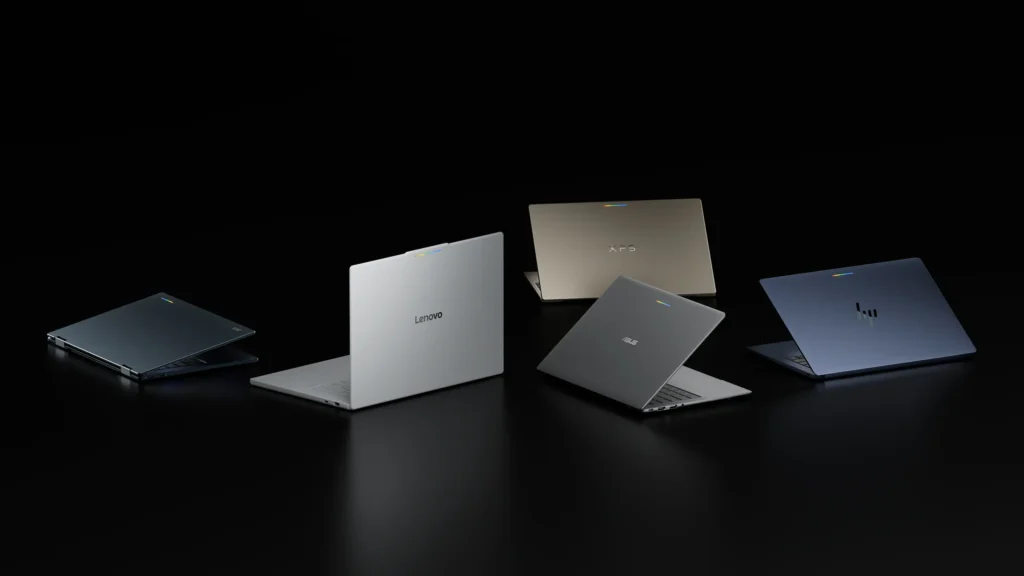
Google publishes five recovery images through its Googlebook recovery catalog, all dated October 5, 2026, and built from the same release branch. The split mirrors the hardware: the three Intel Core Ultra Series 3 machines share one x86_64 build, while the two Snapdragon X Elite machines share an ARM64 build. Each download is a roughly 7GB ZIP that expands to an 18GB disk image.
| Device | Codename | Chip | Architecture | Recovery build | Size (ZIP / unzipped) |
|---|---|---|---|---|---|
| Acer Googlebook 14 | moonstone | Intel Core Ultra 5/7 | x86_64 | 17.CL3B.260622.271.R1 | 7.2 / 17.8 GiB |
| ASUS Googlebook 14 | lapis | Intel Core Ultra | x86_64 | 17.CL3B.260622.271.R1 | 7.2 / 17.8 GiB |
| Lenovo Googlebook 15 | ruby | Intel Core Ultra | x86_64 | 17.CL3B.260622.271.R1 | 7.3 / 17.8 GiB |
| Dell XPS Googlebook | mica | Snapdragon X Elite | ARM64 | 17.CL3B.260622.273.R1 | 7.1 / 17.9 GiB |
| HP Googlebook 14 | quartz | Snapdragon X Elite | ARM64 | 17.CL3B.260622.273.R1 | 7.1 / 17.9 GiB |
Don’t mistake the ZIP for an ISO with a different extension. Inside is a GPT-partitioned Android disk with slots like boot_a, vendor_boot_a, vbmeta_a and super. Renaming it to .iso or flashing it with Rufus or Ventoy won’t turn it into a PC installer; it will only ever boot on the Googlebook it was made for.
How to flash the official image on a Googlebook
If you own a Googlebook whose OS is damaged or stuck in a boot loop, Google’s recovery process is straightforward. You’ll need a second computer running Chrome and a USB drive with at least 32 GB of storage. Recovery erases everything on the Googlebook, so Google suggests trying a factory reset first.
- Install the Device Recovery Utility extension in Chrome on the working computer.
- Select Get started, choose Googlebook, then pick your manufacturer and model.
- Select your USB drive, then click Create now.
- On the Googlebook, unplug all accessories, hold Esc + F2, press the power button, and release it when the screen lights up.
- On the recovery screen, select Use USB drive and follow the prompts.
Running Googlebook OS in a VM on a Mac
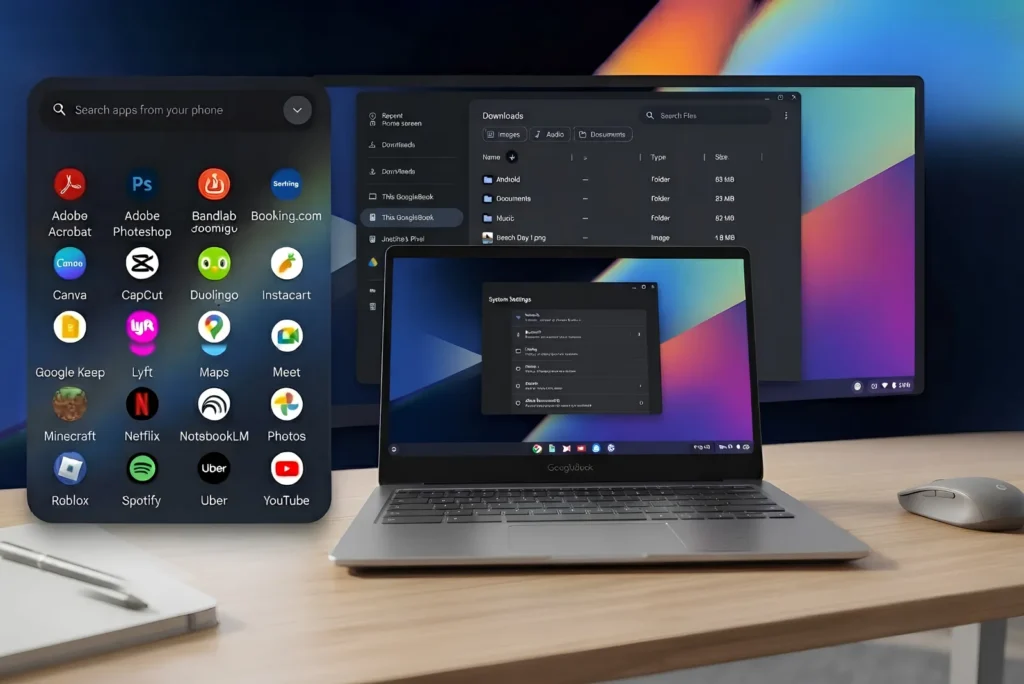
Right now, the most practical way to try Googlebook OS without buying one is gbos-vm, an MIT-licensed project Skylar Taylor shared on r/Googlebook on October 7. It boots Google’s real Dell XPS Googlebook image, ARM64 and Android 17, inside QEMU on an Apple Silicon Mac, complete with hardware-accelerated graphics and a working Chrome browser.
The clever part is how little of Google’s software it touches. The install script downloads the official recovery image directly from Google, verifies it against a pinned SHA-256 hash, leaves the system partitions alone, and rebuilds only the vendor partition using virtual-device components from Cuttlefish, Google’s own Android virtualization project. Graphics run through the Venus Vulkan driver in the guest, MoltenVK on the host, and finally Apple’s Metal. Nothing from Google is redistributed in the repository.
You’ll need an Apple Silicon Mac (Intel Macs won’t work), realistically 16GB of RAM since the VM alone takes 4GB, around 9GB of downloads, and 60GB of free storage. Setup also expects Xcode’s command-line tools, Homebrew, a JDK, and the Android SDK with an NDK and API level 34 or newer. On an M5 MacBook, the build takes about 5 minutes, and the first boot takes about 45 seconds. Reddit users have since reported it running on an M4 Mac mini, an M1 Pro, and an M2 Max, though some needed a macOS update or a missing Android SDK before the build succeeded.
It’s not flawless. Bluetooth crashes on boot, the TPM daemon crash-loops quietly in the background, the display is capped at 60 fps, and some WebGL content can render incorrectly. At least one user also couldn’t sign in to a Google account. More importantly, the VM stores keys in software rather than in a secure element, and the rebuilt vendor partition lacks verified boot. The developer’s own advice is to treat it as a dev VM, and that’s the right call: use a throwaway Google account.
Installing Googlebook OS on a Windows laptop
Bare-metal installs are where things get experimental. GBRUNCH, named after the long-running Brunch project that put ChromeOS on generic PCs, boots Googlebook OS on ordinary Intel UEFI laptops. So far, it has reached the desktop on exactly one machine: an HP Envy x360 15 with a Core i7 155U. On that laptop, the desktop, graphics and Wi-Fi work. The webcam and sound don’t work, and Bluetooth, sleep, and sensors remain unproven.
GBRUNCH builds on the gbos-vm approach. It pulls Google’s official Lenovo Googlebook 15 recovery image, keeps Google’s system partitions intact, and adds a compatibility layer. GRUB then launches Google’s original x86-64 Android kernel from the PC’s UEFI firmware.
Everything runs through Toolbox v0.3, a Debian 13 live USB that downloads the recovery image, builds the system locally and collects logs. Ironically, that toolbox ISO is the only ISO anywhere in the Googlebook story, and it isn’t Googlebook OS itself. You flash it in raw mode to a dedicated 64GB or larger USB drive, boot it in UEFI mode, prepare the official recovery, then reboot into a Googlebook trial. Untested laptops get an experimental boot entry with verbose logging. The USB trial provides Android with 16GB of storage and a 24GB Linux workspace.
There is an internal dual-boot installer, but it has only been tested in QEMU against dummy Windows files, and it needs roughly 60GB of unallocated space. Beyond that, the trade-offs are real: the system runs in an unlocked state with software security, Android user data isn’t encrypted, Google’s automatic updates don’t work, and AMD graphics support is still under investigation. The project warns plainly that boot failures and data loss are possible.
Will it run in a VM on Windows or Linux?
Not yet. The furthest public attempt, Skylar Taylor’s x86 KVM experiment with the ASUS image, gets the kernel up and then dies 0.77 seconds later when Android’s init process hits an instruction the test CPU didn’t support.
That crash is the single most useful piece of information for anyone hoping to revive an older PC. The x86 build of Googlebook OS is compiled for modern Intel processors and leans on GFNI, AVX-VNNI and SHA-NI instructions throughout its system libraries.
In practice, that means a 12th-gen Intel Core (Alder Lake) or newer chip, including low-power N-series parts like the N100. On AMD, the researcher believes only Zen 5 qualifies, though that hasn’t been checked on real hardware. A 10th-gen ThinkPad or a Coffee Lake desktop simply won’t run it, and QEMU’s software emulation can’t paper over the gap.
Even with the right CPU, nobody has publicly reached the Android userspace on x86 in a VM. If you’re hoping to use one of the Snapdragon images on a Windows-on-Arm laptop or an ARM Chromebook, none of the current projects targets those devices either.
Is a GooglebookOS Flex or Chromebook upgrade coming?
A Chromebook upgrade is confirmed; a Flex-style edition is not. In its FAQ for IT admins, last updated September 23, 2026, Google says many newer commercial Chromebook models will be able to move to Googlebook OS, with eligible models and migration paths to be shared later. The page doesn’t mention a generic build for Windows PCs or Macs.
Google also says ChromeOS devices will continue to receive updates and security patches through mid-2034, and that fleet management for Googlebooks will roll out in the second half of 2027. Given the CPU requirements above, it’s a safe bet that any upgrade path will favour recent hardware, though Google hasn’t published its own criteria.
Are GooglebookOS ISO downloads safe?
No, and you should treat any pre-built “GooglebookOS ISO” on a file host, forum or torrent site as untrusted. Google doesn’t make one, and both legitimate community projects deliberately avoid redistributing Google’s files. A repacked image has, by definition, been modified by someone you can’t verify, and it would sit underneath your Google account.
Stick to recovery images served from Google’s own dl.google.com servers, verify the checksum, and get community tools straight from their GitHub repositories so the scripts fetch Google’s files themselves. Use a test Google account on any unofficial build, since all of them use software-only key storage, and back up your data before letting GBRUNCH write to disk.
What we still don’t know
Several big questions remain open. Google hasn’t published which Chromebooks qualify for the upgrade, or said whether a Flex-style Googlebook OS will ever exist. GBRUNCH works on one confirmed laptop, and nobody knows how far it will generalise. It’s also unclear whether Cuttlefish’s virtual hardware will slot into the Intel image the way it did on ARM, which is the missing piece for an x86 VM. Finally, Google hasn’t said how it will treat accounts and updates on modified installs, and neither project currently receives Google’s over-the-air updates, so every install stays frozen at the recovery build it was made from.
Which option should you choose?
If you have an M-series Mac with 16GB of RAM and just want to see Googlebook OS in action, test a web app, or check how an Android app behaves on a desktop-class Googlebook, gbos-vm is the way to go. It’s low-risk because everything stays inside a VM.
GBRUNCH is only for tinkerers with a spare 12th-gen or newer Intel laptop, a USB drive they don’t mind wiping, and the patience to send hardware reports. Stick with the external USB trial and leave the internal installer alone.
Everyone else should wait. That includes AMD users, owners of older Intel PCs, and anyone hoping to convert a Chromebook. Keep an eye out for Google’s Chromebook eligibility list and any sign of a Flex-style release. And if you need Googlebook OS with working updates, verified boot and full hardware support, the honest answer is still to buy a Googlebook. No unofficial route offers all three.